NotepadPlus (Texteditor)
Notepad++ ist ein Rundum-Texteditor für grundlegende Codierung (R, Python, Java, C, Perl, ...), Markdown/html-Bearbeitung und viele andere (kein Tippfehler) mehr. Linux-Alternativen für Notepad++ sind beispielsweise Sublime text (proprietär), Kate (plattformübergreifend) oder Gedit (einfach)].
Office-Anwendungen
Office-Anwendungen vereinfachen den Büroalltag erheblich. Die beliebteste Anwendung von Microsoft hat jedoch einen hohen Preis. Hier sind einige kostenlose Alternativen.
Libre Office
LibreOffice ist völlig kostenlos zu verwenden (siehe Lizenzbedingungen] und funktioniert auf den beliebtesten Plattformen. Neuere Versionen bieten stark verbesserte Benutzeroberflächen mit der Möglichkeit, Menüs in Tabs zu organisieren, ähnlich wie andere Office-Suiten.
Nur Büro
Only Office resembles MS Office a lot, it is very intuitive and enables cloud-based collaboration. It is free to use for non-commercial purposes and comes at an OK price for commercial purposes. On any Ubuntu Linux-based platform (e.g., Ubuntu, Mint, or Lubuntu), it is available through the software manager (or snap, flathub, or whatever you use...). Mint users find more information at https://
For more installation options (e.g., for other Linux platforms, macOS, or Windows) visit the DesktopEditors section on https://
Many plugins for enriching Only Office are available on GitHub. To install them, download/clone the plugins (as zip file) from GitHub. Make sure to unzip the repository and package the following files and folders into one .zip file: config.json, scripts/, pluginCode.js, licenses/, resources/, translations/, LICENSE. Some of these files or directories might not be available in all plugin repos, which you may want to omit in these cases. Also, the pluginCode.js file might be hidden in the scripts/ folder and if this is the case, copy the .js file (e.g., scripts/pluginName.js) into the head folder and rename it to pluginCode.js. Then rename the zip archive to name.plugin (replace the name of the plugin), open Only Office, go to the Plugins tab, Settings, and use the Add button to locate and add the plugin.
Hier ist eine Liste nützlicher Plugins:
Wortzähler hilft, die Anzahl der Zeichen, Wörter, Leerzeichen usw. zu zählen.] Holen Sie es sich unter GitHub
.com /ONLYOFFICE /plugin -wordscounter]. Das Plugin ist nun auch Teil der Standardinstallation LanguageTool prüft Ihre Schrift in vielen Sprachen, einschließlich Rechtschreib- und Grammatikprüfungen.] Das Plugin basiert auf dem LanguageTool spell checker]. Holen Sie es sich unter GitHub
.com /ONLYOFFICE /plugin -languagetool]. Draw.io hilft beim Erstellen von professionellen Diagrammen und Grafiken für jedes Only Office-Dokument.] Holen Sie es sich unter GitHub
.com /ONLYOFFICE /plugin -drawio]. SDKJS ermöglicht das Einbetten von (YouTube) Videos, Fotobearbeitung, Graphengenerierung mit Draw.io, die Organisation von Lektionen und die Anpassung an ein paar Übersetzer (lesen Sie mehr].) Hinweis: Dieses Plugin erfordert einige weitere Optimierungen und Sie können es vorziehen, einzelne sdkjs-Plugins zu installieren, indem Sie sie mit Ihrer bevorzugten Suchmaschine durchsuchen.
PDF-Annotationen (Bearbeiten) mit Xournal++
Xournal ++ ist eine kostenlose Notiz-Software zum Kommentieren von PDFs, Skizzieren und Schreiben von Notizen. Es ist eine neue Version des ursprünglichen Xournal-Projekts und hat mehr Funktionen und einen modernen Look. Es kann Bilder überlagern, verschiedene Stifte und Highlighter verwenden und Dateien in verschiedenen Formaten importieren und exportieren. Seine plattformübergreifende Kompatibilität macht es zu einem leistungsstarken Werkzeug für Studenten, Forscher und Fachleute, die nach einer flexiblen digitalen Notizlösung suchen. Beispielsweise erleichtert Xournal++ das Notizen von PDFs während Meetings, Vorträgen oder Konferenzen und erleichtert das Zeichnen von Bildern und Skizzen.
Windows and MacOS users can find installation instructions at https://
sudo apt install xournalpp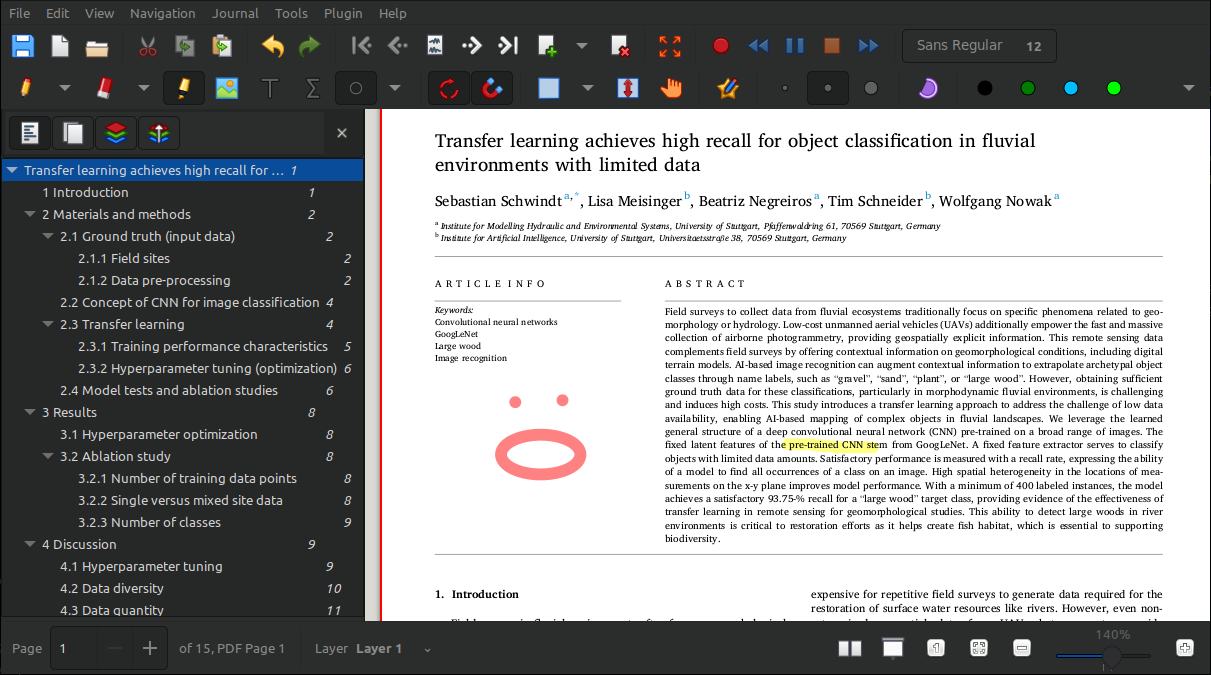
Figure 1:Illustration der Xournal++ App, die unter Linux Mint läuft (dunkles Schema).
LaTeX und TeXstudio
TeXStudio ist ein grafischer Editor, der Ihnen beim Schreiben und Organisieren von LaTeX-Code mit Funktionen wie Syntaxhervorhebung, Rechtschreibprüfung, Autovervollständigung und einem integrierten Viewer hilft. Darüber hinaus ist eine TeX-Distribution wie TeX Live (Linux-Präferenz) oder MiKTeX (Windows-Präferenz) erforderlich, da dies die tatsächlichen LaTeX-Compiler sind, die die Pakete und Schriftarten bereitstellen, die erforderlich sind, um eine .tex-Quelldatei in ein PDF-Dokument zu verwandeln. Sowohl ein Editor (d.h. TeXstudio) als auch eine TeX-Distribution sind erforderlich, da der Editor allein den Code nicht kompilieren kann und die Verteilung allein keine integrierte Umgebung zum Schreiben und Verwalten von LaTeX-Dokumenten bietet. Bevor Sie den grafischen LaTeX-Editor installieren, sollten Sie daher eine TeX-Distribution installieren - der LaTeX-Editor wird versuchen, die installierte TeX-Distribution während der eigenen Installation zu finden (nächster Schritt).
TeXstudio is an open-source LaTeX editor available on both Windows and Linux. It can be installed on Windows by downloading the installer from the official website. Most Linux distributions provide TeXstudio through their package managers. After installation, opening TeXstudio represents a user-friendly interface that helps you create, edit, and manage LaTeX documents in one place. You can start a new document or open existing .tex files, use the integrated PDF viewer to check your compiled output, and run LaTeX or BibTeX tools directly from the toolbar or menu. For more detailed installation instructions, working with TeXstudio, and setting up LaTeX documents, please have a look at our LaTeX thesis template at https://
GNU Octave (matlab® alternative)
Matlab® still is one of the leading tools in science and engineering. However, license fees and its proprietary nature limit the use of Matlab® to privileged entities and users. The good news is that there is a remedy in the shape of GNU Octave. GNU Octave and Matlab® use very similar syntax and .m files can be run with both programs.
If error messages occur by running a .m file with GNU Octave, make sure to load relevant packages at the top of the script (this is one of the major differences between GNU Octave and Matlab®). For example:
pkg load io
# ... some script with console output
pkg unload io
All stable GNU Octave packages can be found at https://
pkg install "<package-link>"  # installs the package
pkg load <package-name>  # loads the package in the active session
Afterward, the new package can be loaded anytime by just typing in pkg load <package-name>. For example, the following code snippet installs and loads the statistics package:
pkg install "https://github.com/gnu-octave/statistics/archive/refs/tags/release-1.6.6.tar.gz"
pkg load statisticsMATLAB® ist eine eingetragene Marke von The MathWorks.