The first steps in numerical modeling of a river with TELEMAC consist in the conversion of a Digital Elevation Model (DEM) into a computational mesh. This tutorial guides through the creation of:
A QGIS project for creating a computational mesh (similar to the BASEMENT pre-processing).
Optionally, the mesh generation with the BlueKenueTM software is featured.
A BlueKenue workspace to interpolate terrain elevations from a DEM, including the export of a mesh to the SELAFIN/SERAFIN (
.slf) geometry format for Telemac, and the definition boundary edges.
At the end of this tutorial, TELEMAC users will have generated a computational mesh in the *.slf file format, which is ready to use for the Telemac2d steady simulation tutorial. Additional materials and intermediate data products are provided in this eBook’s supplemental telemac data repository.
QGIS
Create and Setup a New Project
Launch QGIS and create a new QGIS project to get started with this tutorial. As featured in the QGIS Tutorial, set up a coordinate reference system (CRS) for the project. This example uses data of a river in Bavaria (Germany, UTM zone 33N), which requires the following CRS:
In the QGIS top menu go to Project > Properties.
Activate the CRS tab.
Enter
UTM zone 33Nand select the CRS shown in Fig. 1: EPSG 32633.Click Apply and OK.
Note that the CRS used with TELEMAC differs from the one used with BASEMENT to enable the compatibility of geospatial data products from QGIS with BlueKenue. Also, EPSG 32633 is not a great choice because of its low precision (at best 2 m), but it will do the job for this tutorial.
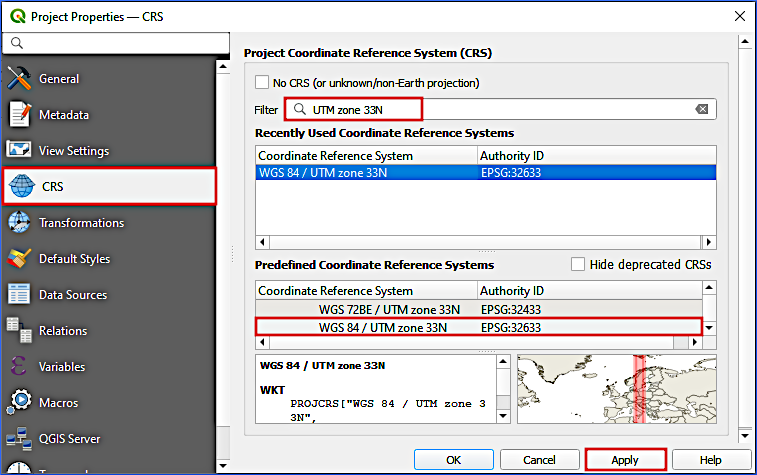
Figure 1:Define UTM zone 33N (WGS84) as project CRS.
Third-Party Plugins
The TELEMAC tutorials rely on the BASEmesh plugin and the PostTelemac plugin. To this end, open the QGIS plugin manager (Plugins menu > Manage and Install Plugins) to open the Plugins window (Fig. 2).

Figure 2:Open QGIS’ Plugins Manager.
In the Plugins window, add both plugins as follows:
BASEmesh requires to add the developer’s plugin repository (more details are available in the BASEMENT pre-processing tutorial):
Go to the Settings tab.
Scroll to the bottom (Plugin Repositories listbox in Fig. 2), click on Add....
In the popup window enter:
a name for the new repository, for instance,
BASEmesh Plugin Repository;the repository address: https://
people .ee .ethz .ch / ~basement /qgis _plugins /qgis _plugins .xml.
Click OK. The new repository should now be visible in the Plugin Repositories listbox.
Install the BASEmesh plugin:
Go to the All tab (still in the Plugins window) and enter
basemeshin the search field.Find the newest BASEmesh (i.e., Available version >= 2.0.0) plugin and click on Install Plugin.
To install the PostTelemac plugin type
posttelemacin the All tab and click on Install Plugin.After the successful installation Close the Plugins window.
Now, the BASEmesh 2 plugin should be available in QGIS’ Plugins menu and the PostTelemac  symbol should be visible in QGIS’ menu bar.
Load DEM
This tutorial uses height information that is stored in a DEM. For the QGIS section, preferably use the GeoTIFF DEM with UTM zone 33N as CRS as follows:
Download the GeoTIFF DEM and save it in the same folder (
/ProjectHome/or a sub-directory) as the above-create qgz project.Add the downloaded DEM as a new raster layer in QGIS:
In QGIS’ Browser panel find the ProjectHome directory where you downloaded the DEM tif.
Drag the DEM tif from the ProjectHome folder into QGIS’ Layer panel.
To facilitate delineating specific regions of the river ecosystem later, add a satellite imagery basemap (XYZ tile) under the DEM and customize the layer symbology.
The dem-utm33n layer should now be visible in the viewport and listed in the Layers panel. Right-click on the dem-utm33n layer and select Zoom to Layer(s) to view the layer.
Alternatively work with a .xyz DEM pointcloud
This tutorial uses later in the section on BlueKenueTM a *.xyz file as DEM, which was derived from the GeoTIFF using the workflow described in the QGIS tutorial. The *.xyz file can also be used with QGIS and it can be downloaded here. To import the dem.xyz file in QGIS, open the Data Source Manager from the Layer top menu, select Add Layer and Add Delimited Text Layer.... In the opening Data Source Manager window (see Fig. 3) take the following actions:
Select the downloaded
dem.xyzfile in the file name field.In the File Format frame, make sure to select Custom delimiters and check the Space delimiter box.
In the Record and Fields Options frame, set the Number of header lines to discard to
13and check the First record has field names box.In the Geometry Definition frame, select
:EndHeaderas X field,field_2as Y field, andfield_3as Z field. SelectProject CRS: ESRI:32633 - WGS 84 / UTM zone 33Nas Geometry CRS.Click Add and Close the Data Source Manager window.
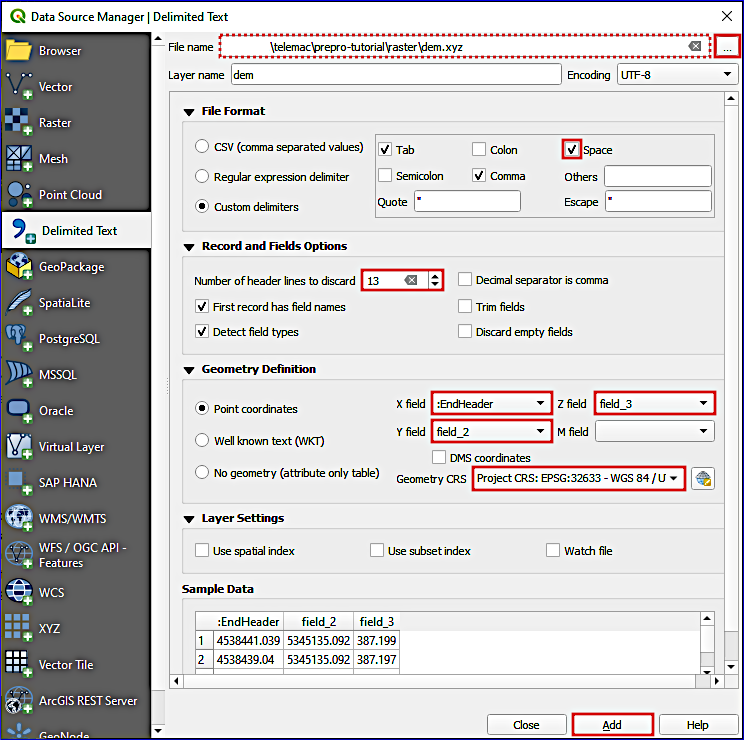
Figure 3:Import the *.xyz point cloud as QGIS layer.
Enable Snapping
It is important that the lines do not overlap to avoid ambiguous or missing definitions of regions and to ensure that boundary lines are closed. Therefore, activate snapping:
Activate the Snapping Toolbar: View > Toolbars > Snapping Toolbar
In the Snapping toolbar > Enable Snapping

Enable snapping for
Vertex, Segment, and Middle of Segments
 .
.Snapping on Intersections
 .
.Self Snapping
 .
.
Model Boundaries and Breaklines
This section resembles the instructions of the BASEMENT pre-processing tutorial to generate an SMS 2dm mesh file. The differences are that the shapefiles for the TELEMAC pre-processing use the UTM zone 33N CRS and that the height (elevation) interpolation needs to be done with the BlueKenueTM software to generate liquid boundary lines and an *.slf geometry file for TELEMAC. The generation of the SMS 2dm mesh relies on the QGIS BASEmesh plugin and requires drawing a
Line Shapefile called breaklines.shp that contains model boundaries and internal breaklines between model regions with different characteristics;
Line Shapefile called liquid-boundaries.shp that contains model boundaries for assigning inflow and outflow conditions;
Point Shapefile called region-pts.shp that contains markers for the definition of characteristics of model regions.
Figure 4 provides an overview of the shapefiles to be drawn for generating a quality mesh with the BASEmesh plugin.
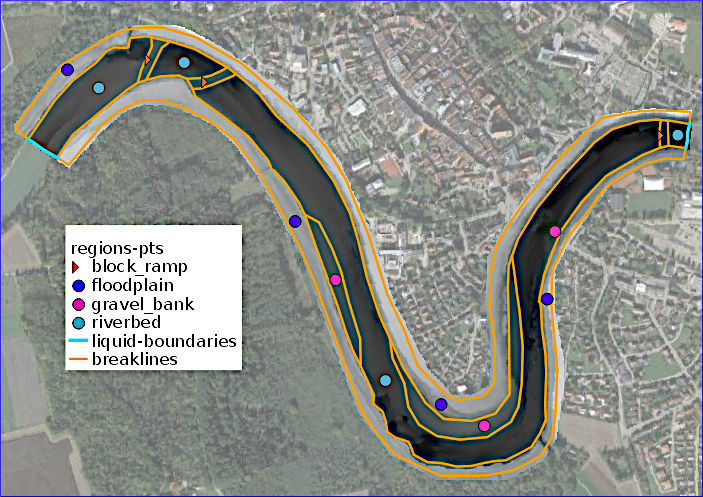
Figure 4:The breaklines, liquid boundaries, and region points shapefile to draw for creating a 2dm quality mesh with the BASEmesh plugin (background map: Google (n.d.) satellite imagery).
Breaklines and Model Outline
The model boundary defines the model extent and can be divided into regions with different characteristics (e.g., roughness values) through breaklines. Breaklines indicate, for instance, channel banks and the riverbed (main channel), and need to be inside the DEM extents. Boundary lines and breaklines are stored in a Line Shapefile that BASEmesh uses to find both model boundaries and internal breaklines between model regions. For this purpose, Create a Line Shapefile and call it breaklines.shp (Layer > Create Layer > New Shapefile Layer). Click on QGIS’ Layers menu > Create Layer > New Shapefile Layer... (see Fig. 5). Make sure to select EPSG: 32633 - WGS 84 / UTM zone 33N as CRS  . Do not add any field.

Figure 5:Create a new shapefile from QGIS’ Layers menu.
Start editing breaklines.shp by clicking on the yellow pen  and draw the breaklines indicated in Fig. 4 by activating Add Line Feature
  , which involves:
The boundaries of the model at the left and the right floodplain limits:
Delineate the outer bounds of the floodplains.
Make sure that all points and lines are inside the DEM layer.
Do not cross the river (wetted area indicated by the satellite imagery basemap).
Finalize every line with a right-click.
The breaklines of the left bank (LB) and right bank (RB):
Draw lines along the wetted main channel indicated in the satellite imagery (basemap).
Make sure that line ends perfectly coincide with the before-created floodplain boundary lines (snapping is needed); thus, the main channel’s breaklines and the floodplain boundary lines need to enclose the floodplains without any gap between the lines.
Breaklines of gravel banks:
Draw lines along the gravel banks that are visible in the satellite imagery basemap in the main channel.
Make sure that the line ends perfectly coincide (use snapping) with the before-created main channel breaklines; thus, the main channel’s hard breaklines and the gravel bank breaklines need to enclose the gravel banks without any gap between the lines.
Optional: Breaklines of block ramps:
Find the rough block ramps (effervescing waters) in the satellite imagery basemap and delineate them by drawing lines across the wetted main channel.
Make sure that the line ends perfectly coincide with the main channel breaklines; thus, the main channel’s hard breaklines and the block ramp breaklines need to enclose the block ramps without any gap between the lines.
To correct drawing errors use the Vertex Tool  . Finally, save the new lines (edits of breaklines.shp) by clicking on the Save Layer Edits
  symbol. Stop (Toggle) Editing by clicking again on the yellow pen symbol.
Liquid Boundaries
The liquid boundaries define where hydraulic conditions, such as a given discharge or stage-discharge relationship, apply at the model inflow (upstream) and outflow (downstream) limits. Thus, a functional river model requires at least one inflow boundary (line) where mass fluxes enter the model and one outflow boundary (line) where mass fluxes leave the model. For this purpose, Create a Line Shapefile called liquid-boundaries.shp, select EPSG: 32633 - WGS 84 / UTM zone 33N as CRS , and define two text data fields named type and stringdef. Make sure that snapping is still enabled and Toggle (Start) Editing the new liquid-boundaries.shp. Then draw two lines:
Activate Add Line Feature
.Draw an inflow boundary line (light blue line on the left of Fig. 4):
Zoom to the inflow region of the DEM limits, where there is a gap between the above-created floodplain boundary breaklines.
Start drawing a line on one bank (top of the below figure) and move to the other bank to make approximately seven more points across the river.
The last point needs to coincide with the end of the other bank’s floodplain boundary breakline.
Finalize the line with a right-click, and enter
Inflowin the type field andinflowin the stringdef field (the case matters).
Draw an outflow boundary line (light blue line on the right of Fig. 4):
Zoom to the outflow region of the DEM limits, where there is a gap between the above-created floodplain boundary breaklines.
Start drawing a line on one bank (top of the below figure) and move to the other bank to make approximately seven more points across the river.
The last point needs to coincide with the end of the other bank’s floodplain boundary breakline.
Finalize the line with a right-click, and enter
Outflowin the type field andoutflowin the stringdef field (the case matters).
To correct drawing errors use the Vertex Tool .
Finally, save the liquid boundary lines (edits of liquid-boundaries.shp) by clicking on the Save Layer Edits symbol. Stop (Toggle) Editing by clicking again on the yellow pen symbol.
Region Point Markers
Region point markers are placed inside regions defined by boundary lines and breaklines. Every region marker (i.e., a point somewhere in the region area) assigns, for instance, a material identifier (MATIDs) and a maximum mesh cell area. The MATID is (currently) not needed for TELEMAC (BASEMENT only), but the entries in the max_area field will determine the cell size of the mesh regions and have major effects on the quality and efficiency of the TELEMAC simulation. To draw region points, create a new point shapefile named raster-points.shp with the following definitions (similar to Fig. 9 in the BASEMENT pre-processing tutorial):
Define the File name as region-points.shp (or similar)
Ensure the Geometry type is Point
Select
EPSG: 32633 - WGS 84 / UTM zone 33Nas CRSAdd three New Fields (in addition to the default Integer type ID field):
max_area = Decimal number (length = 10, precision = 3)
MATID = Whole number (length = 3)
type = Text data (length = 20)
Click OK to create the new point shapefile.
Consider to deactivate snapping for drawing the region markers because the points should not coincide with any line. Then, Toggle (Start) Editing the new region-points.shp file and activate Add Point Feature  . Draw one point in every area section that is enclosed by breaklines and (liquid) boundary lines (refer to the round and triangular-shaped points in Fig. 4). Depending on the apparent area type from the satellite imagery basemap, assign one of the four regions listed in Tab. 1 to every point.
Table 1:Region names and their max_area, MATID, and type field values.
Region | Riverbed | Block ramps | Gravel banks | Floodplains |
|---|---|---|---|---|
max_area | 25.0 | 20.0 | 25.0 | 80.0 |
MATID | 1 | 2 | 3 | 4 |
type | riverbed | block_ramp | gravel_bank | floodplain |
After drawing a point in every closed area, save the region point markers (edits of region-points.shp) by clicking on the Save Layer Edits symbol. Stop (Toggle) Editing by clicking again on the yellow pen symbol.
Quality Meshing (.2dm)
BASEmesh’s quality mesh tool creates a computationally efficient triangular mesh based on Shewchuk (1996) and within the above-defined model boundaries. The tool associates mesh properties with the regions shapefile, but it does not include elevation data. Thus, after generating a quality mesh in SMS 2dm format, elevation information needs to be added with the BlueKenueTM software. To generate the quality mesh, open BASEmesh’s QUALITY MESHING tool (QGIS’ Plugins > BASEmesh 2 > QUALITY MESHING). Make the following settings in the popup window (see also Fig. 6):
Triangulation constraints frame:
Breaklines = breaklines (see Model Boundaries and Breaklines).
Keep all other defaults.
Regions frame:
Activate the Regions checkbox.
Region marker layer = regions-points (see Model Boundaries and Breaklines).
Activate the MATID field checkbox and select the regions-points shapefile’s MATID field.
Activate the Maximum area field checkbox and select the regions-points shapefile’s max_area field.
Mesh domain frame: keep defaults.
String definitions frame:
Activate the String definitions checkbox.
String definitions layer = liquid boundaries.
String definitions ID field = stringdef.
Activate the Include in 2DM node strings (BASEMENT 3) checkbox.
Ignore all BASEMENT 2.8 options.
Settings frame: keep defaults.
Output frame:
Click on the Browse... button and define a 2dm file name in the
/ProjectHome/directory, such as prepro-tutorial_quality-mesh.2dm.
Click on the Run button to create the quality mesh.
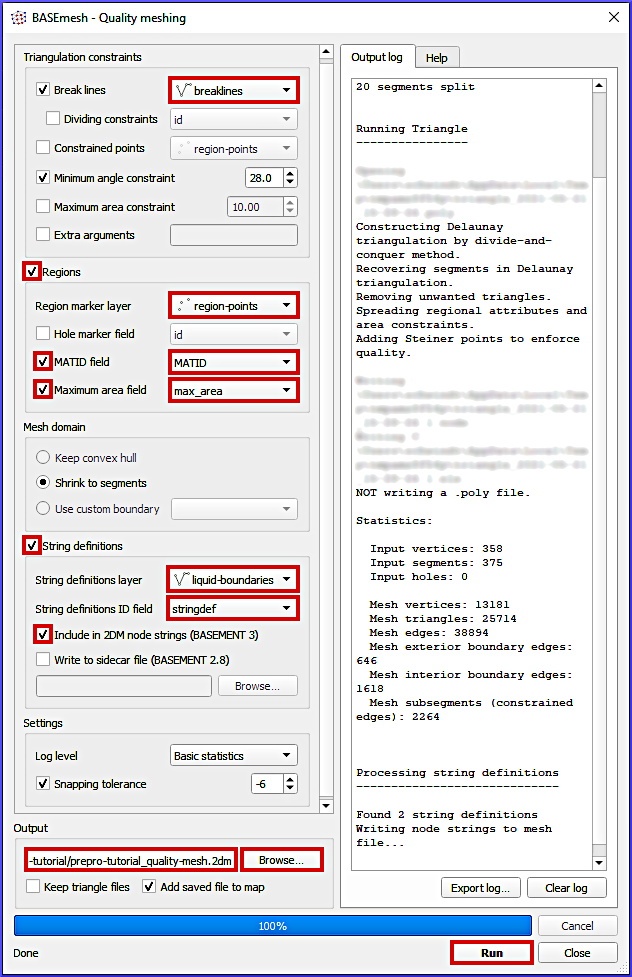
Figure 6:Definitions to be made in BASEmesh’s Quality meshing tool.
Quality meshing may take a short while. After a successful mesh generation the file prepro-tutorial_quality-mesh-interp.2dm will have been generated and it automatically shows up in QGIS as a single-color surface with 0-0 Bed Elevation. The next section shows the interpolation of elevation data with the BlueKenueTM software.
BlueKenue
Get Started
This section features the BlueKenue software to interpolate terrain elevations from a DEM.xyz file on an SMS 2dm mesh, export the mesh to the SELAFIN/SERAFIN (*.slf) geometry format for TELEMAC, and define boundary lines.
In addition, the Meshing with BlueKenue section explains the mesh generation with BlueKenueTM, which might be unstable because of program crashes and inflexible for correcting line drawing errors. Still, meshing with BlueKenueTM might be desirable to create a computational mesh with long triangular cells that approximately follow the river streamlines (i.e., using a channel sub-mesh).
To familiarize with BlueKenueTM, launch the software (more details in the installation chapter) and locate
the WorkSpace browser (on the left of the window),
the Data Items entry in the WorkSpace, where file objects will be listed,
the Views entry in the WorkSpace, where a 2D View (1) entry appears by default and a 3D View can be added from the Window top menu > New 3D View.
Have a look at the File menu, which enables to:
Create New BlueKenueTM objects, such as SELAFIN, Conlim Boundary Condition, T3 Mesh Generator, or 2D Interpolator objects.
Open file types such as
*.slfgeometry files or*.xyzpoint clouds.Import files such as:
an ArcView Shapefile (read more about shapefiles),
an SMS 2dm Mesh like the one created in the above pre-processing with QGISsection, or
a GeoTIFF raster, which will not work with many GeoTIFF rasters in practice because BlueKenueTM cannot handle Float32 or Float64 data in a GeoTIFF.
The Edit menu enables editing BlueKenueTM objects, such as lines, point sets, or meshes.
The Tools menu provides routines that can be applied to particular BlueKenueTM objects or for combining objects. In particular, this tutorial will make use of the Map Objects... tool.
Files and Objects
BlueKenueTM saves every object in software specific file formats and this eBook refers to the following BlueKenueTM file objects (alphabetic order of file endings):
*.bc2files contain Conlim Boundary Conditions.*.clifiles contain ready-to-use boundary conditions for TELEMAC and can be produced with a*.bc2object.*.i2sfiles contain closed or open lines.*.in2files contain 2D Interpolators for mapping elevation (or other) data on a mesh.*.slffiles contain ready-to-use TELEMAC meshes that stem from a BlueKenueTM SELAFIN object and a*.t3smesh file.*.t3cfiles contain BlueKenueTM channel mesh generator objects.*.t3mfiles contain BlueKenueTM mesh generator objects to create a*.t3smesh object.*.t3sfiles contain BlueKenueTM mesh objects that can either be imported (e.g., from an SMS 2dm file) or created with a*.t3mmesh generator.
All files that are created with BlueKenueTM are based on the ASCII EnSim 1.0 file type standard. The EnSim Core builds on HDF and it is documented in BlueKenueTM's user manual PDF that comes along with the BlueKenue installer (in BlueKenueTM press the F1 key to open the manual). Note that understanding the EnSim Core can significantly facilitate troubleshooting structural errors of BlueKenueTM files.
Load XYZ Points
Download the provided dem.xyz point cloud that contains EnSim-formatted 3d coordinates of the river ecosystem DEM that will be modelled in this tutorial. The *.xyz file was derived from the GeoTIFF DEM used in the QGIS pre-processing.
To load the dem.xyz file in BlueKenueTM, open it from the File menu (File > Open...) and take the following actions in the popup window:
Navigate to the download folder.
Next to the File name: field, locate the file type drop-down menu and change the default from Telemac Selafin File (
*.slf) to Point Sets (*.pt2,*.xyz,*.pcl).Click Open to finalize the import.
To verify if the point cloud was correctly imported, drag the new dem (Z) data items to the 2D View (1) entry. Figure 7 shows the imported XYZ point cloud in BlueKenueTM.
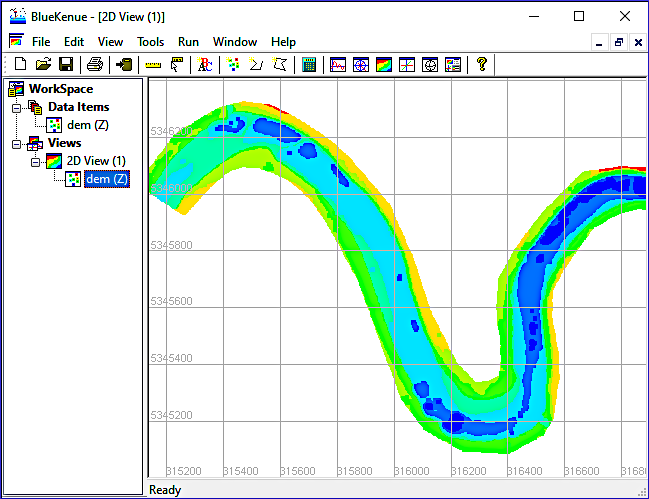
To verify the CRS of the point dataset, right-click on dem (Z), select properties, go to the Spatial tab, and make sure that BlueKenueTM correctly identified UTM Zone 33 in the Coordinate System frame and WGS 84 as Ellipsoid.
BlueKenue Meshing (Optional)
This section features the basic mesh generation with BlueKenueTM, which also runs smoothly on Linux through the PlayOnLinux app. Additionall, the Baxter tutorial Gifford-Miears & Leon, 2013 provides more details for getting started with BlueKenue along with detailed screenshots.
Draw Model Boundary (Closed Line)
Delineate the model boundary (outline) with a closed line object (see also Fig. 8):
Create a new Closed Line by clicking on the
 symbol in the BlueKenueTM menu.
Draw the new closed line:
Make points by clicking close to the outer extent of the dem (Z) layer in the 2D Views (1) window. Ensure that no point lies outside the region where elevation data is available (i.e., tightly delineate dem (Z)).
Finalize the closed line by pressing Esc.
Name the closed line, for instance,
model-outline.Skip Adding a New Attribute by just clicking OK.
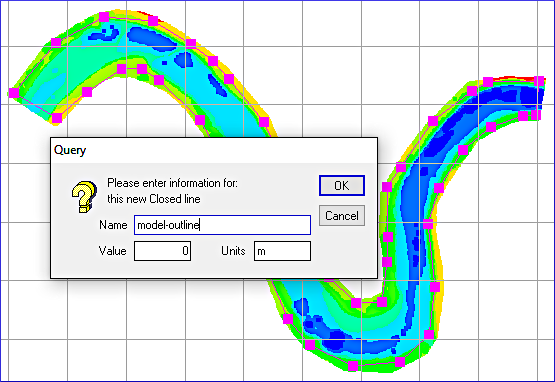
Figure 8:The Closed Line of the model boundaries in BlueKenueTM's 2D View window.
To save the model outline, highlight the new Closed Line object in the WorkSpace browser and click on the disk  symbol. Consider creating a new folder called
 bk-mesh that will contain all BlueKenueTM objects required for meshing. Thus, save the model outline (Closed Line), for example, as /bk-mesh/model-outline.i2s.
The current state of BlueKenueTM can be saved in the form of a workspace.ews file (File > Save WorkSpace... > define a name). Saving the workspace requires that all BlueKenueTM objects are saved on the disk. Optionally, download the meshing
Draw Open Lines of the Channel Banks
Similar to the above-created breaklines in QGIS, the channel banks can be delineated with Open Line objects. For this purpose create two Open Line objects as follows:
Create a new Open Line by clicking on the
 symbol in the BlueKenueTM menu.
Draw the new open line:
Make points by following the blue-ish-green areas as indicated in Fig. 9 2D Views (1) window (flow direction from left to right).
Finalize the open line by pressing Esc.
Name one open line
LeftBankand the otherRightBank.Skip Adding a New Attribute to: by just clicking OK.
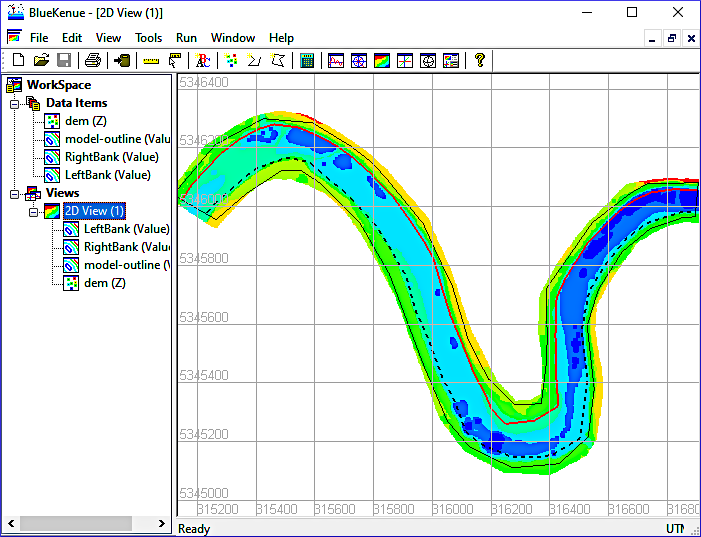
Figure 9:The finalized Open and Closed Line objects delineating the model boundaries and the channel banks. The RightBank Open Line is represented by the dashed black line and the LeftBank Open Line is represented in red.
Generate Mesh(es)
BlueKenueTM provides mesh generators for creating regular or unstructured computational grids (meshes). This example features the T3 Channel Mesher to generate a triangular mesh, which involves first creating a channel mesh (sub-mesh) and second generating a compound mesh that embeds the channel sub-mesh in a coarser mesh of the floodplains. To this end, start with creating a new T3 Channel Mesher object (File > New > T3 Channel Mesher). In the popup window set:
CrossChannelNodeCount to
20andAlongChannelInterval to
15.
Click OK (not Run) to close the new T3 Channel Mesh window. Next, drag and drop the above-created LeftBank and RightBank Open Line objects on their equivalent attributes of the new T3 Channel Mesh object in the WorkSpace browser as indicated in Fig. 10. Next, generate the channel mesh by double-clicking on the new T3 Channel Mesh object and click Run. To visualize the resulting Mesh, drag it on the 2D View (1) object.
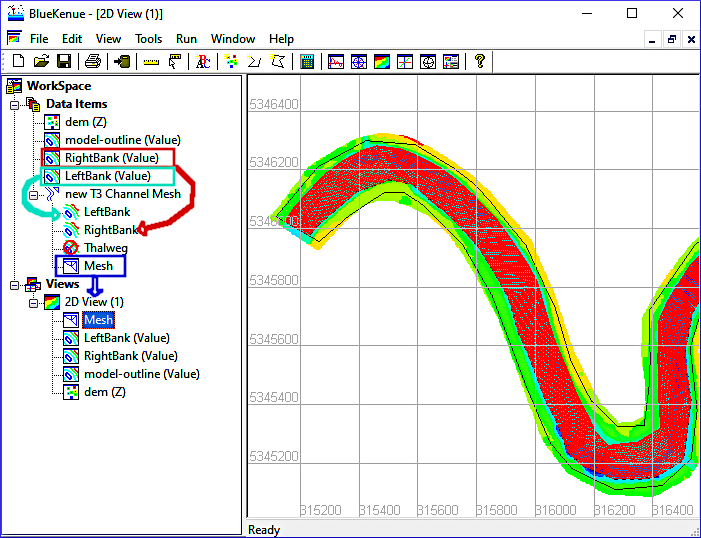
Figure 10:Create and visualize the channel mesh after dragging the LeftBank and RightBank Open Line Objects on their name equivalents of the T3 Channel Mesh object.
Next, embed the channel mesh in a coarser floodplain mesh by creating a new T3 Mesh Generator object (File > New > T3 Mesh Generator). In the T3 Mesh popup window make the following settings (see also Fig. 11):
Enable the Resample Outline checkbox.
Set the Default Edge Length to
20.Keep all other defaults.
Press OK (not Run).
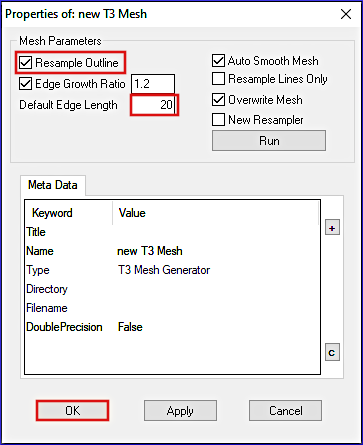
Figure 11:Setup the properties of the new T3 Mesh Generator object.
Define the Outline (Value) by dragging (see also Fig. 12):
The above-created model-outline object on the Outline (Value) of the new T3 Mesh, and
The channel Mesh on the SubMeshes attribute of the new T3 Mesh.
Generate the compound mesh by double-clicking on the new T3 Mesh object and single-clicking on Run. Confirm the question box (Continue? > Yes) and press OK after the mesh generator is finished (Done...). To visualize the resulting Mesh, drag it on the 2D View (1).
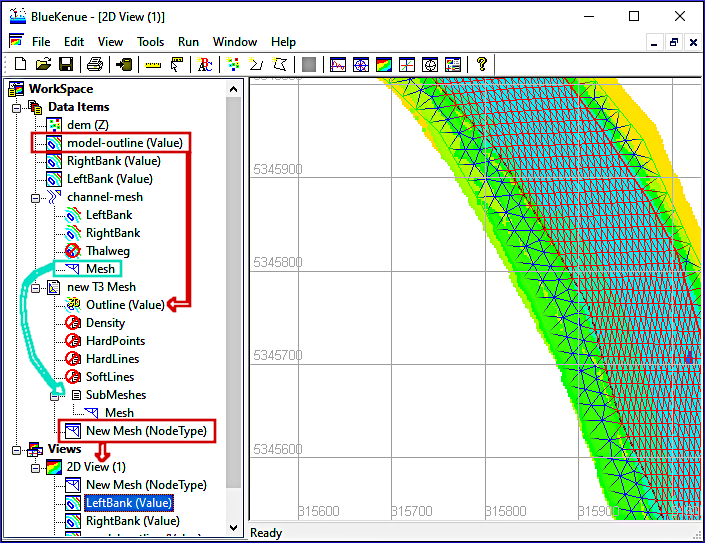
Figure 12:The compound mesh after dragging the model outline on the Outline (Value) and the channel Mesh on the SubMeshes attribute of the new T3 Mesh generator object.
SELAFIN
Open and Import Ingredients
Whether the mesh was created with BlueKenueTM or QGIS (and the BASEmesh plugin), make sure to have now a BlueKenueTM workspace with only the XYZ point cloud loaded (see the Load XYZ Points section). Before a SELAFIN object can be created, the previously created mesh (i.e., either the quality-mesh.2dm or the compound-mesh.t3s) needs to be imported into the WorkSpace in addition to the point cloud. The following instructions show the import and use of the *.2dm file:
In BlueKenueTM go to File > Import > SMS 2DM Mesh.
In the import window, navigate to the folder where the
*.2dmfile lives, select the*.2dmfile, and click Open.When the Reading SMS 2d Mesh File process is Done..., click OK.
How to load a BlueKenue .T3S mesh file?
In contrast to an SMS 2dm (*.2dm) file that has to be imported, a *.t3s file has to be opened in BlueKenueTM. To this end, open the T3 Mesh (*.t3s) from File > Open... > select 2D T3 Mesh (*.t...) as file type and navigate to the download directory. Select the *.t3s mesh file and click Open.
Ignore warning messages regarding the projection, but make sure that BlueKenueTM correctly read the mesh coordinates by dragging the imported (or opened) mesh onto the 2D View (1). The BlueKenueTM window should now look similar to Fig. 13.
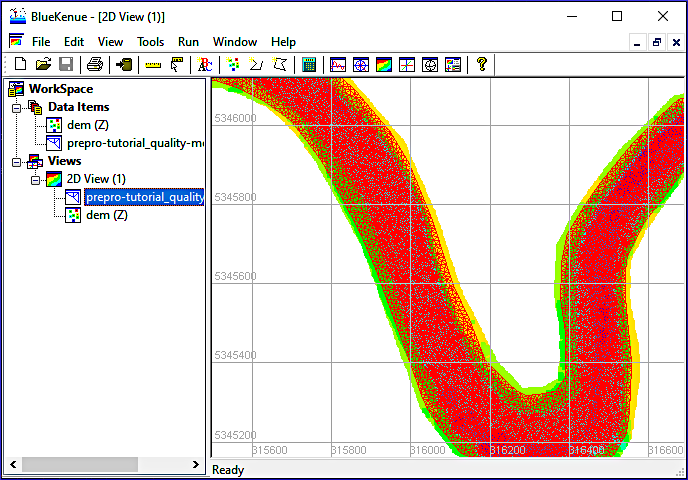
Figure 13:The imported mesh in the 2D View (1).
Create SELAFIN Object
With the open dem.xyz and the imported (or opened) mesh, all ingredients required by a BlueKenueTM SELAFIN object are available. Now, create a new SELAFIN object:
Go to File > New > SELAFIN Object...

In the popup window (Properties of:new Selafin) click OK and a new Selafin object will appear in the WorkSpace’s Data Items.
Right-click on the new Selafin object and select Add Variable...
Take the following action in the Add New SELAFIN Variable window:
In the Mesh field, select the above-imported (or opened) mesh (e.g.,
prepro-tutorial_quality-mesh-utm33n.2dm).In the Name field, select BOTTOM.
In the Units field, select M (i.e., meters).
Keep all other defaults and click OK.
Save the new Selafin object by highlighting it in the Data Item tree of the WorkSpace and clicking the disk
symbol. Give the mesh a meaningful and short name, such as qgismesh.slf.
Create 2D Interpolator
A 2D Interpolator object is required to map elevation information onto the Selafin mesh. To this end, create a new 2D Interpolator object and map elevations onto the BOTTOM mesh:
Go to File > New > 2D Interpolator... and a new 2D Interpolator object will appear in the Data Items of the WorkSpace.
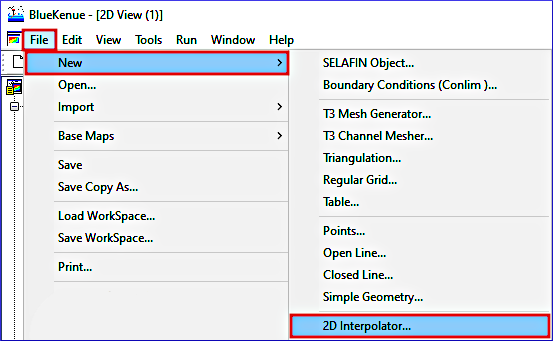
Drag dem (Z) (i.e., the above-opened dem.xyz pointcloud) onto the new 2D Interpolator object (red arrow in Fig. 14).
Highlight (click on) the BOTTOM (Anonymous Attribute) mesh attribute of the above-created SELAFIN object (e.g., called
qgismesh).With the mesh highlighted, go to the Tools top menu > Map Object....
In the opening Available Objects window select the new 2D Interpolator and click OK.
Once the Processing... finished, click OK.
Save the final meshes:
The BOTTOM mesh is a BlueKenueTM
*.t3smesh object; to save it, highlight it in the Data Items tree and click on the disk symbol. Then, save the mesh, for instance, as BOTTOM.t3sfile.To save the Selafin mesh in its current (with interpolated elevations) state, highlight the Selafin object (e.g.,
qgismesh) and click on the disk symbol. This action overwrites the above-saved *.slffile (click Yes to confirm replacing it).
To verify if the 2D interpolator correctly interpolated the elevations on the BOTTOM mesh, drag the BOTTOM mesh onto the 2D View (1). Uncheck the visibility of dem (Z) and the imported (or opened) mesh with a right-click on these elements in the 2D View (1) tree and deselect the Visible entry. Thus, only the height-interpolated mesh should be visible now, as indicated in Fig. 14. If the interpolation has been successful, the mesh is displayed in a variety of (rainbow) colors. Otherwise, if the mesh is completely, monotonously monochrome (red), the elevation interpolation has not been successful and must be repeated (the numerical model cannot work properly without elevation information).
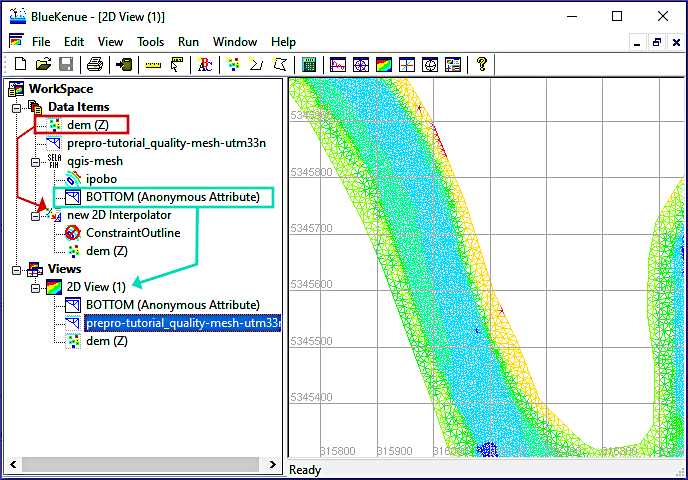
Figure 14:The height-interpolated mesh in the 2D View (1) with indication of drag and drop actions for running the object mapping with a new 2D Interpolator object.
Boundary Conditions (Conlim - CLI)
Create Conlim Object
TELEMAC needs to know how to treat the outer edges of the model (mesh). For this purpose, boundary conditions have to be assigned to all nodes that constitute the *.slfmesh outline:
Go to File > New > Boundary Conditions (Conlim )... and a new 2D Interpolator object will appear in the Data Items of the WorkSpace.

In the opening popup window (Available t3s Objects), select the above-created BOTTOM mesh (i.e., the mesh with elevation information) and click OK. A new BOTTOM_BC object will occur in the Data Items tree of the WorkSpace.
Drag the new BOTTOM_BC object onto the 2D View (1), which will enable the prescription of boundary condition types (details in the next section).
Figure 15 illustrates the new BOTTOM_BC object in the 2D View (1) and indicates where upstream and downstream liquid boundaries will be applied in the next section.
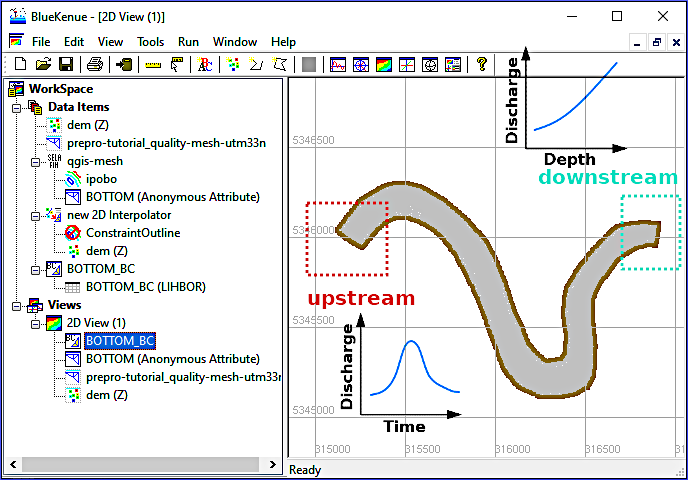
Figure 15:The new Boundary Conditions (Conlim) object (BOTTOM_BC) in the 2D View (1) with a qualitative overview of the position of upstream and downstream boundaries where prescribed flow (Q) and prescribed flow (Q) and Depth (H) will be applied later in the TELEMAC setup.
To save the new BOTTOM_BC object, highlight it in the Data Items tree and click on the disk symbol. Define a filename such as boundaries.bc2. As a result of saving the object, the BOTTOM_BC object takes on the new file name (e.g., boundaries).
Define Liquid Boundaries
The default boundary type of the boundaries object is Closed boundary (wall). To enable mass (i.e., water, sediment, and/or tracer) fluxes through the model, at least two openings must be drawn into the closed boundary. For this purpose, at least one inflow and one outflow open boundary for liquids must be defined. This tutorial uses this minimum number of required open boundaries (i.e., one upstream inflow and one downstream outflow boundary), which are indicated in Fig. 15.
The upstream (inflow) liquid boundary will constitute an Open boundary with prescribed Q and H (discharge and water depth corresponding to a stage-discharge relation) with the code 5 5 5 and the downstream outflow (liquid) boundary will constitute an Open boundary with prescribed H with the code 5 4 4 (i.e., prescribed water depth). These types of boundary conditions are required for a dry initialization of the model. In practice, the downstream boundary should be located be at a gauging station where a stage-discharge relation has been calibrated with historic data. To back-calculate cross-section averaged roughness from a stage-discharge relation, take a look at the Python exercise on 1-d hydraulics for solving the Manning-Strickler formula.
To assign the two liquid boundary lines, zoom into the downstream and upstream regions indicated in Fig. 15 and create both boundaries as follows (toggle tabs):
Zoom into the upstream region indicated in Fig. 15.
Locate the main channel banks corresponding to the breaklines drawn in QGIS (see above) or BlueKenueTM (see above).
Double-click on a node at one bank of the model outline (no matter what bank), then hold the Shift key and double-click on a node at the other bank to highlight the inflow (purple) line (see Fig. 17).
Right-click on the purple inflow line and select Add Boundary Segment.
In the opening window (CONLIM Boundary Segment Editor) make the following settings:
Define Boundary Name as
upstream.In the Boundary Code field select
Open boundary with prescribed Q and H(5 5 5).Keep all other defaults and click OK.
Save the boundaries object by clicking on the disk
symbol and confirm overwriting boundaries.bc2(i.e., click Yes).
Switch to the Downstream boundary tab to define the outflow conditions according to Fig. 18.
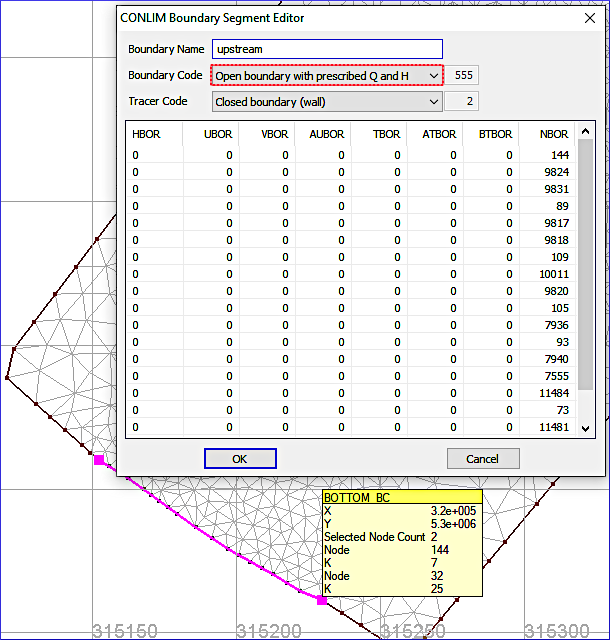
Figure 17:The upstream boundary definition. Double-click on a node at one bank, then hold the Shift key and double-click on a node at the other bank to highlight the inflow (purple) line. Note that BOTTOM_BC might appear with the name boundaries if the object was saved as boundaries.bc2.
Zoom into the downstream region indicated in Fig. 15.
Locate the main channel banks corresponding to the breaklines drawn in QGIS (see above) or BlueKenueTM (see above), which are indicated by the red-dotted lines in Fig. 18.
Double-click on a node at one bank of the model outline (no matter what bank), then hold the Shift key and double-click on a node at the other bank to highlight the outflow (purple) line (see Fig. 18).
Right-click on the purple outflow line and select Add Boundary Segment.
In the opening window (CONLIM Boundary Segment Editor) make the following settings:
Define Boundary Name as
downstream.In the Boundary Code field select
Open boundary with prescribed H(5 4 4).Keep all other defaults and click OK.
Save the boundaries object by clicking on the disk
symbol and confirm overwriting boundaries.bc2(i.e., click Yes).
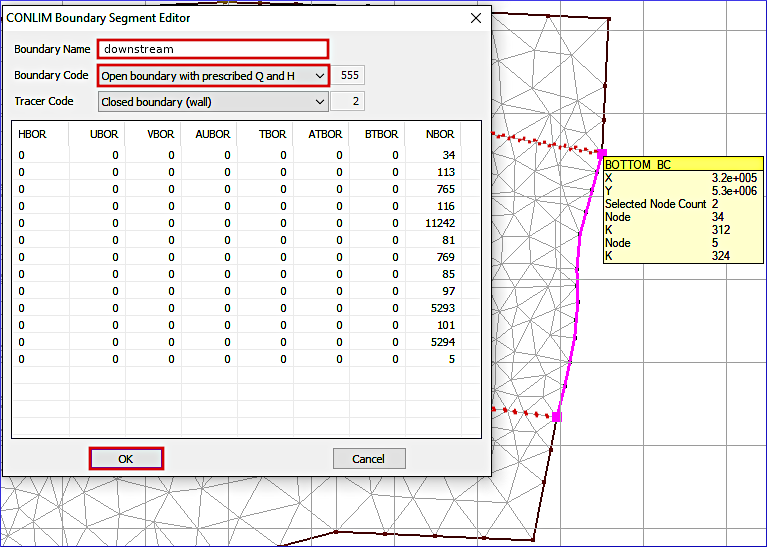
Figure 18:The downstream boundary definition. Double-click on a node at one bank, then hold the Shift key and double-click on a node at the other bank to highlight the outflow (purple) line. Note that BOTTOM_BC might appear with the name boundaries if the object was saved as boundaries.bc2.
Ultimately, TELEMAC will need a .cli file (Conlim Table) that can be created by
highlighting the boundaries (LIHBOR) entry of the boundaries (or BOTTOM_BC) object in the Data Items tree and
pressing the disk
symbol (see Fig. 19).
Save the boundaries file, for instance, as boundaries.cli.
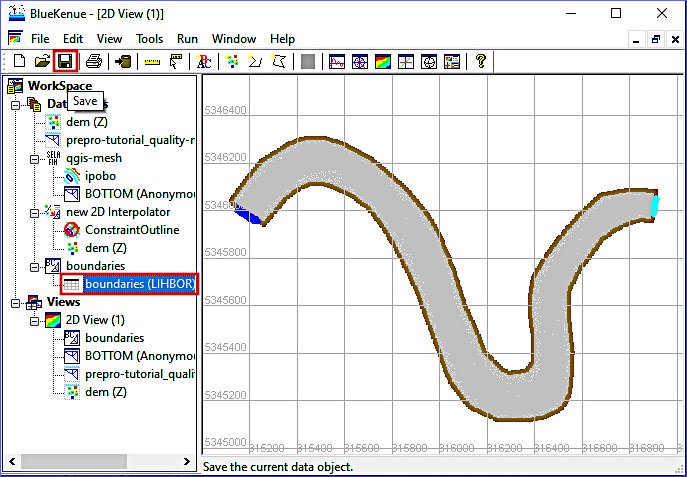
Figure 19:The finalized boundary conditions are saved in a .cli file by highlighting the boundaries (LIHBOR) entry of the boundaries (or BOTTOM_BC) object in the Data Items tree.
The here created Selafin/Serafin (*.slf) and boundary conditions (*.cli) files are the main products that are needed for running any other SELAFIN-based TELEMAC tutorial in this eBook. The steady 2d tutorial assigns a constant discharge at the upstream (inflow) and a constant discharge plus constant depth at the downstream (outflow) boundaries. To perform an unsteady calculation, the steady flow rates can be replaced with a *.qsl ASCII text file. To this end, the .cli file can be easily adapted any time later with a basic text editor.
- Google. (nd). Google Satellite Imagery. https://mt1.google.com/vt/lyrs=s&x=%7Bx%7D&y=%7By%7D&z=%7Bz%7D
- Shewchuk, J. R. (1996). Triangle: Engineering a 2D quality mesh generator and Delaunay triangulator. In M. C. Lin & D. Manocha (Eds.), Applied Computational Geometry Towards Geometric Engineering (pp. 203–222). Springer. 10.1007/BFb0014497
- Gifford-Miears, C., & Leon, A. (2013). Tutorial on the use of TELEMAC-2D Hydrodynamics model and Pre-/Post-processing with BlueKenue for flood-inundation mapping in Unsteady Flow Conditions. Oregon State University. https://web.eng.fiu.edu/arleon/courses/Transient_flows/Tutorials/TELEMAC_2D/TELEMAC_2D_Tutorial_Baxter.pdf