NotepadPlusPlus (Text Editor)
Notepad++ is an all-round text editor for basic coding (R, Python, Java, C, Perl, ...), markdown/html editing and many many (not a typo) more. Linux alternatives for Notepad++ are, for example, Sublime text (proprietary), Kate (cross-platform), or Gedit (simplistic).
Office Applications
Office applications greatly simplify everyday office life. However, the most popular application from Microsoft has a high price. Here are some free-to-use alternatives.
Libre Office
LibreOffice is completely free to use (see their license terms) and works on most popular platforms. Recent versions offer greatly improved user interfaces, with the ability to organize menus into tabs, similar to other office suites.
Only Office
Only Office resembles MS Office a lot, it is very intuitive and enables cloud-based collaboration. It is free to use for non-commercial purposes and comes at an OK price for commercial purposes. On any Ubuntu Linux-based platform (e.g., Ubuntu, Mint, or Lubuntu), it is available through the software manager (or snap, flathub, or whatever you use...). Mint users find more information at https://
For more installation options (e.g., for other Linux platforms, macOS, or Windows) visit the DesktopEditors section on https://
Many plugins for enriching Only Office are available on GitHub. To install them, download/clone the plugins (as zip file) from GitHub. Make sure to unzip the repository and package the following files and folders into one .zip file: config.json, scripts/, pluginCode.js, licenses/, resources/, translations/, LICENSE. Some of these files or directories might not be available in all plugin repos, which you may want to omit in these cases. Also, the pluginCode.js file might be hidden in the scripts/ folder and if this is the case, copy the .js file (e.g., scripts/pluginName.js) into the head folder and rename it to pluginCode.js. Then rename the zip archive to name.plugin (replace the name of the plugin), open Only Office, go to the Plugins tab, Settings, and use the Add button to locate and add the plugin.
Here is a list of useful plugins:
Word counter helps to count the number of characters, words, spaces, etc. Get it at GitHub
.com /ONLYOFFICE /plugin -wordscounter. The plugin is now also part of the standard installation LanguageTool checks your writing in many languages, including spell and grammar checks. The plugin is based on the LanguageTool spell checker. Get it at GitHub
.com /ONLYOFFICE /plugin -languagetool. Draw.io aids in creating professional diagrams and graphs for any Only Office document. Get it at GitHub
.com /ONLYOFFICE /plugin -drawio. SDKJS enables embedding (YouTube) videos, photo editing, graph generation with Draw.io, organization of lessons, and tweaks into a couple of translators (read more). Note: this plugin requires some more tweaking and you may prefer to install singular sdkjs plugins by searching them with your favorite search engine.
PDF Annotations (Editing) with Xournal++
Xournal++ is a free note-taking software for annotating PDFs, sketching, and writing notes. It is a new version of the original Xournal project and has more features and a modern look. It can layer images, use different pens and highlighters, and import and export files in different formats. Its cross-platform compatibility makes it a powerful tool for students, researchers and professionals looking for a flexible digital note-taking solution. For example, Xournal++ facilitates note-taking on PDFs during meetings, lectures or conferences, and makes it easy to draw on pictures and make sketches.
Windows and MacOS users can find installation instructions at https://
sudo apt install xournalpp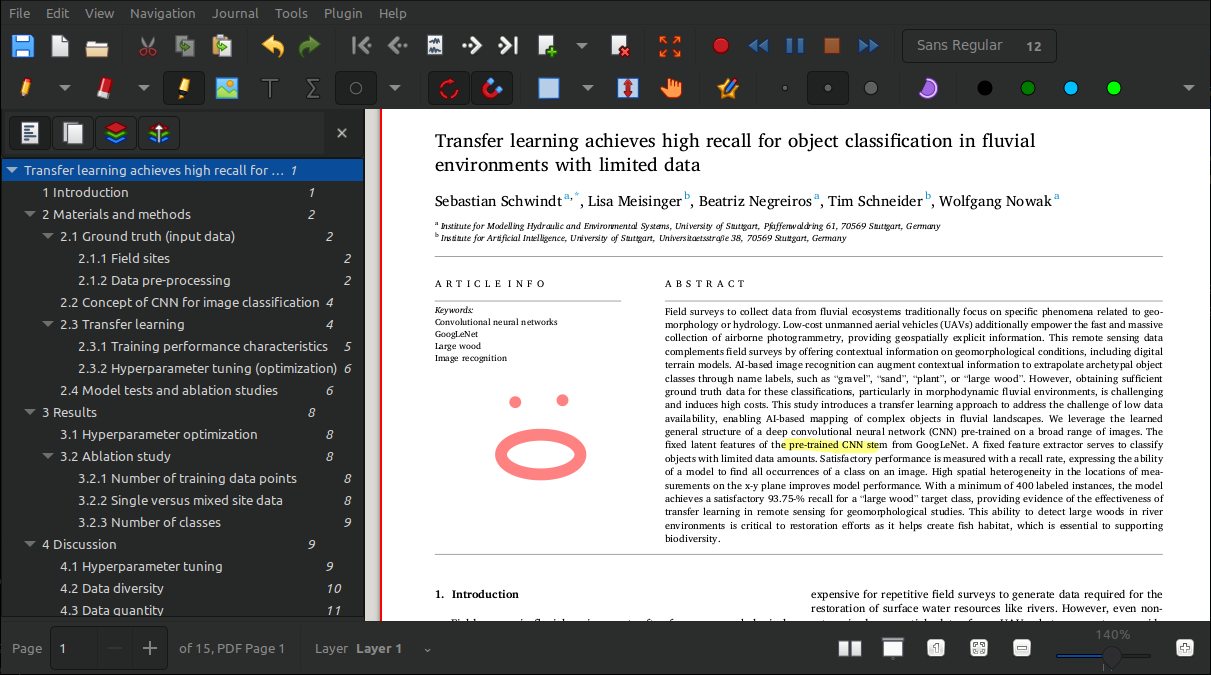
Figure 1:Illustration of the Xournal++ app running on Linux Mint (dark scheme).
LaTeX & TeXstudio
TeXStudio is a graphical editor designed to help you write and organize LaTeX code with features like syntax highlighting, spell checking, auto-completion, and an integrated viewer. In addition, a TeX distribution such as TeX Live (Linux preference) or MiKTeX (Windows preference) is required, since these are the actual LaTeX compilers that provide the packages and fonts needed to transform a .tex source file into a PDF document. Both an editor (that is, TeXstudio) and a TeX distribution are required, because the editor alone cannot compile the code, and the distribution alone does not provide an integrated environment for writing and managing LaTeX documents. Therefore, before installing the graphical LaTeX editor, be sure to install a TeX distribution -- the LaTeX editor will try to find the installed TeX distribution during its own installation (next step).
TeXstudio is an open-source LaTeX editor available on both Windows and Linux. It can be installed on Windows by downloading the installer from the official website. Most Linux distributions provide TeXstudio through their package managers. After installation, opening TeXstudio represents a user-friendly interface that helps you create, edit, and manage LaTeX documents in one place. You can start a new document or open existing .tex files, use the integrated PDF viewer to check your compiled output, and run LaTeX or BibTeX tools directly from the toolbar or menu. For more detailed installation instructions, working with TeXstudio, and setting up LaTeX documents, please have a look at our LaTeX thesis template at https://
GNU Octave (Matlab® Alternative)
Matlab® still is one of the leading tools in science and engineering. However, license fees and its proprietary nature limit the use of Matlab® to privileged entities and users. The good news is that there is a remedy in the shape of GNU Octave. GNU Octave and Matlab® use very similar syntax and .m files can be run with both programs.
If error messages occur by running a .m file with GNU Octave, make sure to load relevant packages at the top of the script (this is one of the major differences between GNU Octave and Matlab®). For example:
pkg load io
# ... some script with console output
pkg unload io
All stable GNU Octave packages can be found at https://
pkg install "<package-link>"  # installs the package
pkg load <package-name>  # loads the package in the active session
Afterward, the new package can be loaded anytime by just typing in pkg load <package-name>. For example, the following code snippet installs and loads the statistics package:
pkg install "https://github.com/gnu-octave/statistics/archive/refs/tags/release-1.6.6.tar.gz"
pkg load statisticsMATLAB® is a registered trademark of The MathWorks.